Tradovate Connection Guide
This step-by-step guide will help you connect your ETF accounts to Tradovate and begin trading.
Getting Connected
Congratulations on starting your journey with Elite Trader Funding (ETF). The following guide will walk you through connecting your ETF accounts to the Tradovate Platform so you can start trading.
- NOTE: If this is your first time connecting to the Tradovate platform, you’ll need to log in from a computer to complete and sign the data agreement.
- Tradovate accounts connect only to the NinjaTrader and Tradingview platforms.
1: Access the Tradovate Platform
- Go to Tradovate Web Platform.

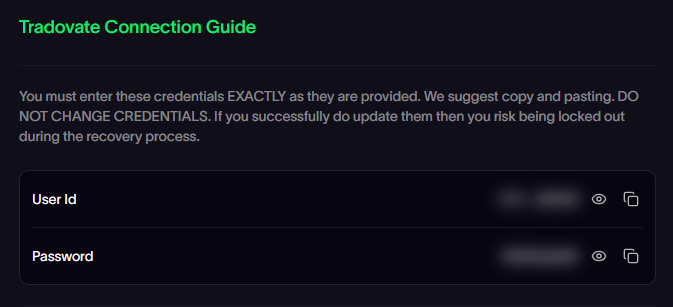
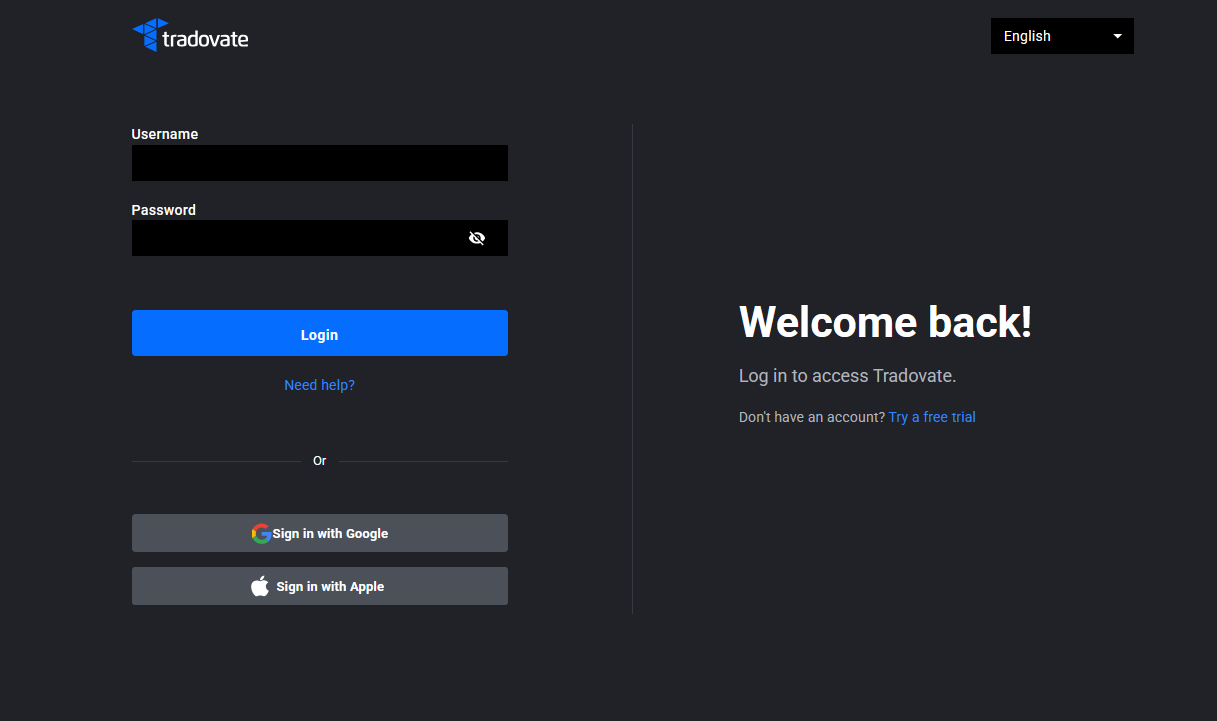
- Log in to Tradovate using the credentials provided on your Trader Dashboard.
- Be sure to copy your credentials from the Trader Dashboard and paste them directly into the Tradovate login screen. (Below is a screenshot of your Trader Dashboard for reference.)

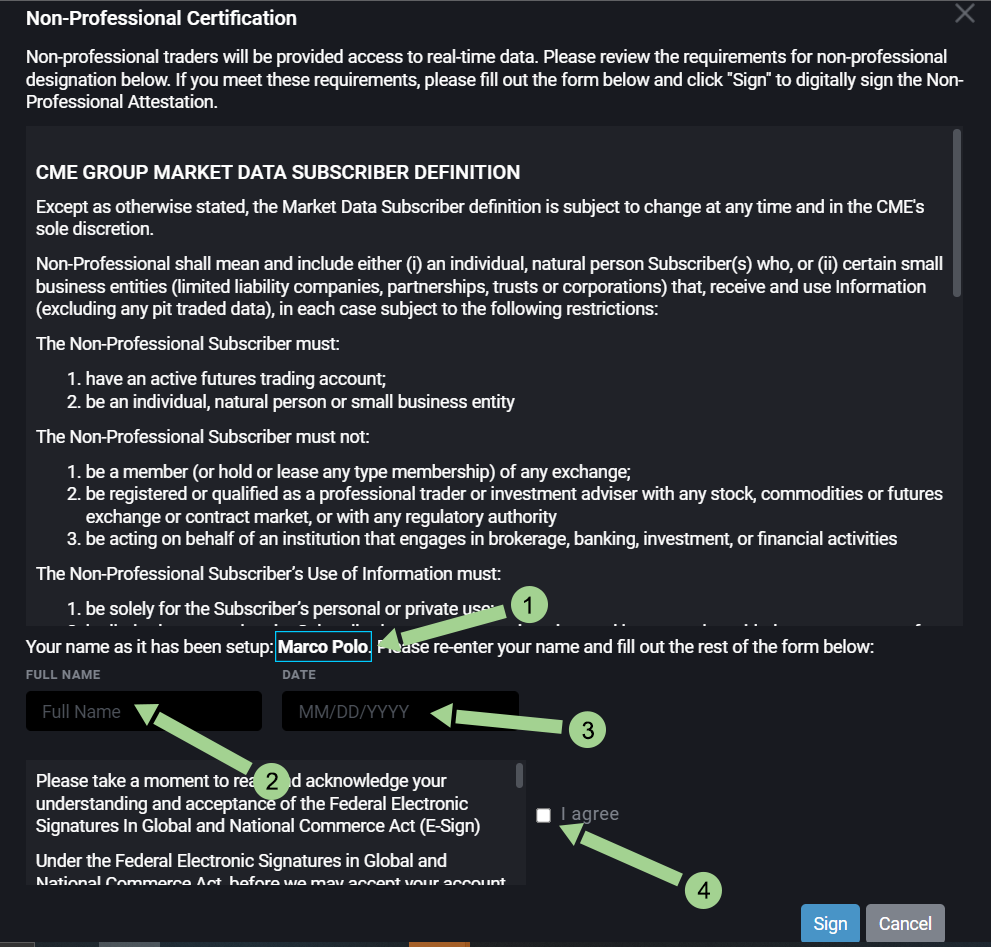
2: Sign the Tradovate data agreement
- Review and accept Tradovate’s Terms of Use, selecting the non-professional status option only.
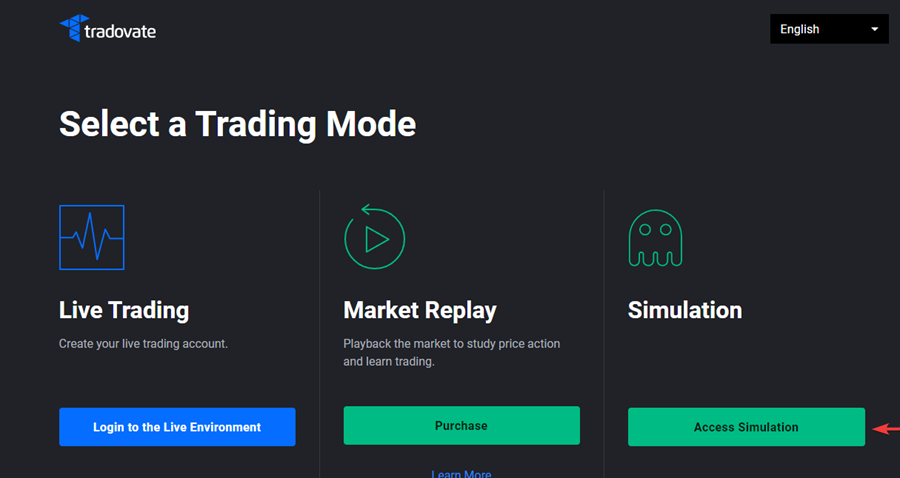
- Once you’ve accepted the terms, click Access Simulation to enter the trading platform.

- Once you’ve accepted the terms, click Access Simulation to enter the trading platform.

NOTE: After completing these steps, live market data may take 1–5 minutes to activate. If you see the error message “Realtime market data required to trade this contract,” please log out and back in.
Helpful Tradovate Links
- Web Platform: Tradovate Web Platform
- Windows: Download Tradovate for Windows
- Mac: Download Tradovate for Mac
- Mobile: Android App | iOS App
Connecting to NinjaTrader
For NinjaTrader integration, refer to the NinjaTrader Connection Guide and download the latest version from NinjaTrader.