

Command Palette
Search for a command to run...
Search for a command to run...
Search for a command to run...
Learn how to install the Elite Trader Funding app on your iPhone, Android, Mac, or Windows device and set up push notifications for real-time alerts.
Install in seconds. No App Store required. Get faster access to your dashboard, accounts, rewards, and everything ETF without opening a browser every time.
But the real value is what happens when you enable push notifications:
One FREE evaluation reset is yours, once you complete two steps:
Follow the instructions below and you will immediately receive one free evaluation reset!
On your iPhone, open Safari and go to elitetraderfunding.app. Log in with your ETF account credentials.
⚠️ The app must be installed through Safari. Chrome and Firefox on iOS do not support PWA installation or push notifications.
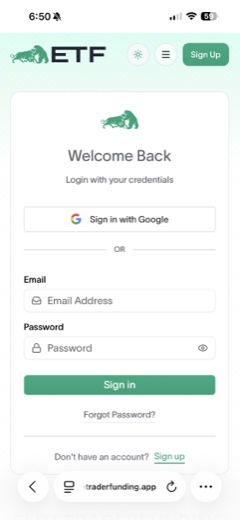
In Safari's bottom toolbar, tap the menu button (the icon with three lines, depending on your iOS version). A small menu will appear showing options like Share, Add to Bookmarks, New Tab, and New Private Tab.
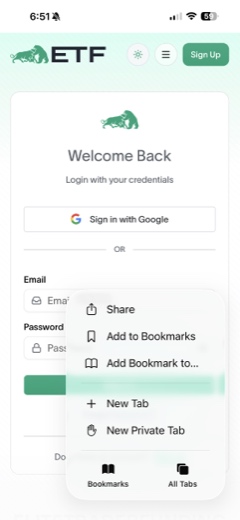
Tap Share from that menu. This opens the full iOS share sheet.
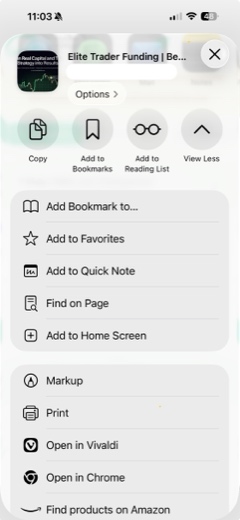
In the share sheet, scroll down past the app icons row until you see Add to Home Screen. Tap it. You'll see a preview of the ETF app icon and name.
💡 You can edit the name before saving. "ETF" or "Elite Trader Funding" works well.
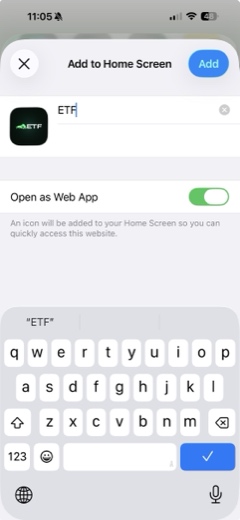
Tap Add in the top-right corner. The ETF icon will now appear on your home screen just like a native app.
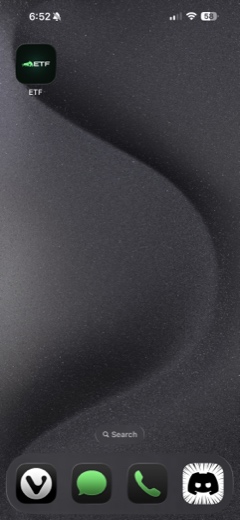
Tap the ETF icon on your home screen to launch the installed app. Push notifications on iPhone only work when the app is opened from your home screen, not from Safari directly.
Once inside the app, tap Dashboard, then navigate to your Profile page. Scroll down until you see the App & Notifications section.
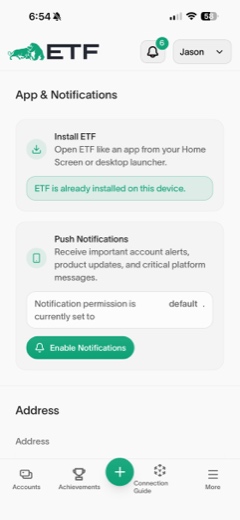
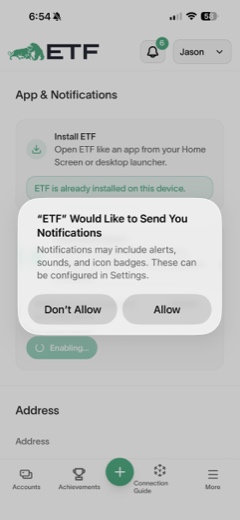
Under the Push Notifications card, tap the Enable Notifications button. When your iPhone prompts you to allow notifications from Elite Trader Funding, tap Allow.
🔔 If you see "This browser does not support web push notifications," close the app and reopen it from your home screen icon, not from Safari.
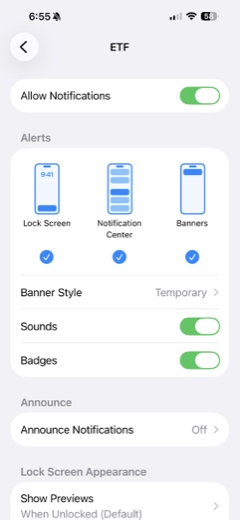
If you're still not receiving notifications, go to Settings > Notifications on your iPhone, scroll to the ETF app, and make sure Allow Notifications is toggled on.
On your Android device, open Google Chrome and go to elitetraderfunding.app. Log in with your ETF account credentials.
Chrome may automatically show a banner at the bottom of the screen that says "Add Elite Trader Funding to home screen." Tap it. If not, tap the three-dot menu (⋮) in the top-right corner and select Add to Home screen or Install app.
Tap Install or Add on the confirmation dialog. The app will be added to your home screen and app drawer just like a native app.
Tap the ETF icon from your home screen. Once inside, tap Dashboard, then go to your Profile page and scroll down to the App & Notifications section.
Under the Push Notifications card, tap Enable Notifications. Tap Allow when Android prompts for permission.
🔔 Enabling notifications means you'll get real-time alerts for reward approvals, evaluation milestones, and flash sale offers.
If notifications aren't coming through, go to Settings > Apps > Elite Trader Funding > Notifications and make sure they are enabled.
The ETF app can be installed on Mac using Google Chrome or Microsoft Edge.
⚠️ Safari on Mac does not currently support PWA installation.
In the address bar, go to elitetraderfunding.app and press Enter. Log in with your ETF account credentials.
Look for a small install icon (a computer with a down arrow) on the right side of the address bar. Click it, then click Install.
💡 Don't see the install icon? Click the three-dot menu (⋮) and look for Cast, save, and share > Install page as app in Chrome, or Apps > Install this site as an app in Edge.

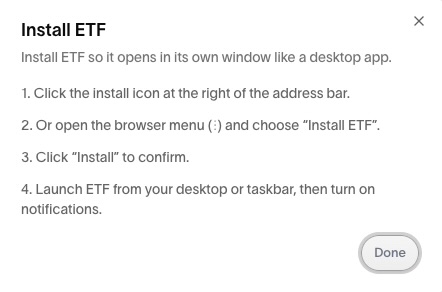
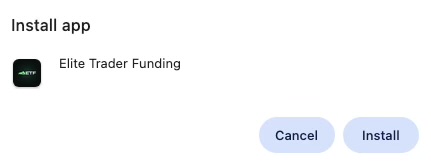
Click Install. The app will open in its own window and a shortcut will be added to your Applications folder and Dock.
The first time you open the installed app, your browser will ask if you want to allow notifications. Click Allow.
Inside the app, go to Dashboard > Profile and scroll to the App & Notifications section. Click Enable Notifications.
🔔 Enabling notifications means you'll get real-time alerts for reward approvals, evaluation milestones, and flash sale offers.
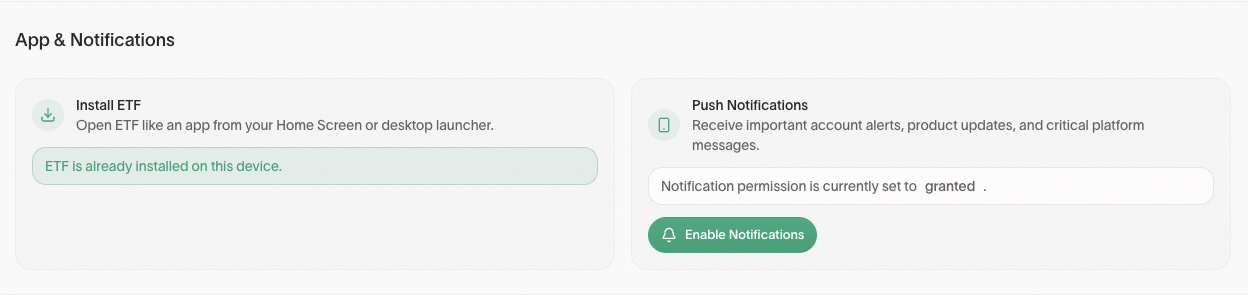
If notifications still aren't showing, go to System Settings > Notifications and make sure your browser (Chrome or Edge) is allowed to send notifications.
On Windows, the ETF app works best with Microsoft Edge (recommended) or Google Chrome.
In the address bar, go to elitetraderfunding.app and press Enter. Log in with your ETF account credentials.
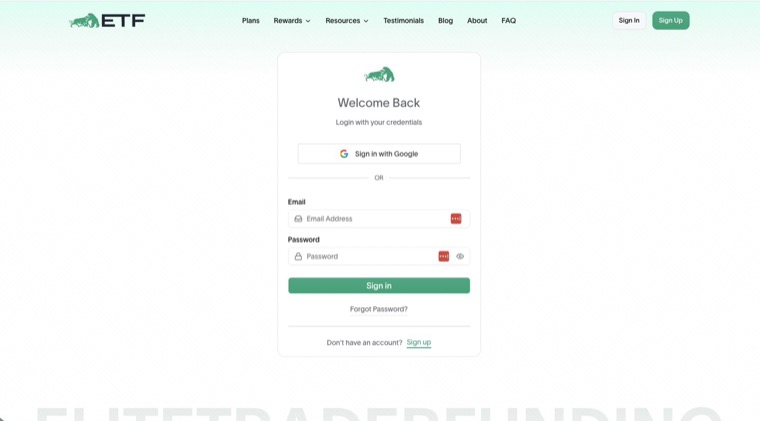
Look for an install icon or "App available" prompt on the right side of the address bar. You can also click the three-dot menu (⋮) and choose Apps > Install this site as an app.

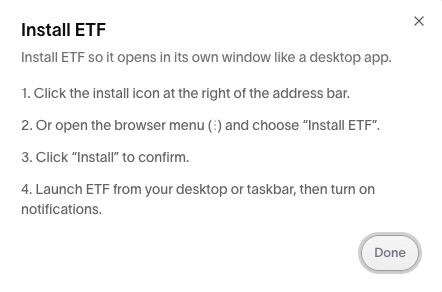
Click Install. The app will open in its own window and shortcuts will be added to your Start menu and taskbar.
When the app opens, click Allow when your browser asks for notification permission.
Inside the app, go to Dashboard > Profile and scroll to the App & Notifications section. Click Enable Notifications.
🔔 Enabling notifications means you'll get real-time alerts for reward approvals, evaluation milestones, and flash sale offers.
If notifications aren't coming through, go to Settings > System > Notifications and make sure your browser (Edge or Chrome) is allowed to send notifications.
You'll now receive push notifications for reward approvals, evaluation updates, flash sales, and exclusive offers, delivered directly to your device even when the app isn't open.