Connect Tradovate to TradingView Guide
Welcome to Elite Trader Funding! Here’s how to connect your Tradovate account to TradingView so you can start trading seamlessly.
Getting Connected
NOTE:
- Tradovate Only accounts will NOT have Tradingview access. YOU MUST SELECT TRADINGVIEW AT CHECKOUT for our system to auto-enable your access.
- You can NOT pay the $5 connection fee.
- You can not group trade accounts directly on Tradingview.
Prerequisites
- Complete Tradovate Setup: Ensure you have completed the Tradovate Connection Guide, including signing the data agreement. This step is essential for TradingView integration.
- Create or Log in to TradingView: If you don’t have an account, sign up for a FREE account at TradingView.
1. Connect Tradovate to TradingView
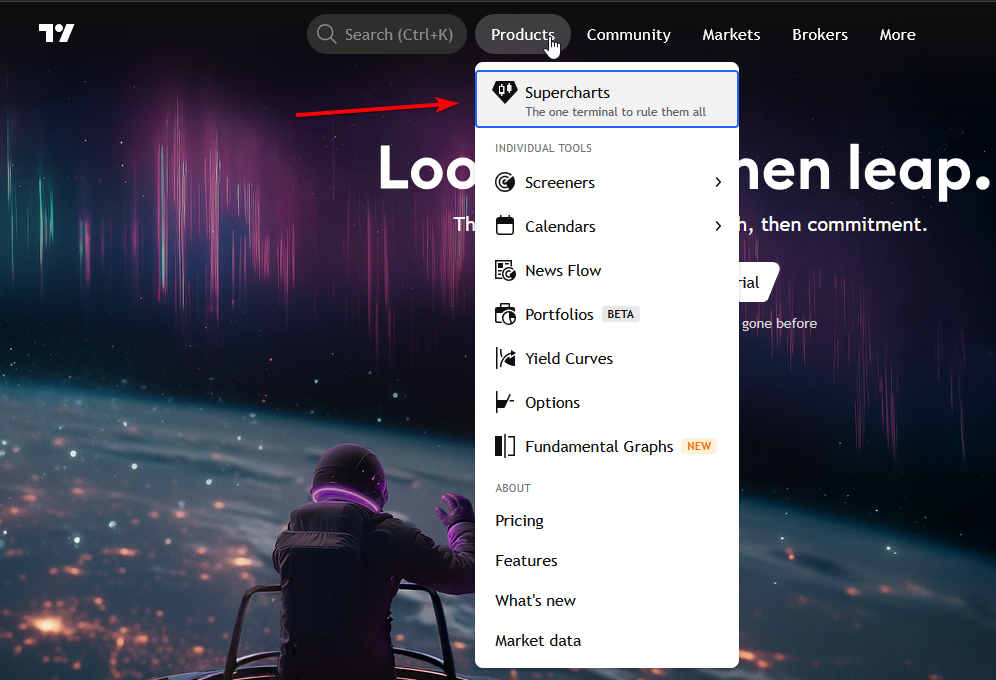
- On TradingView, navigate to the "Products" section and select "Supercharts".

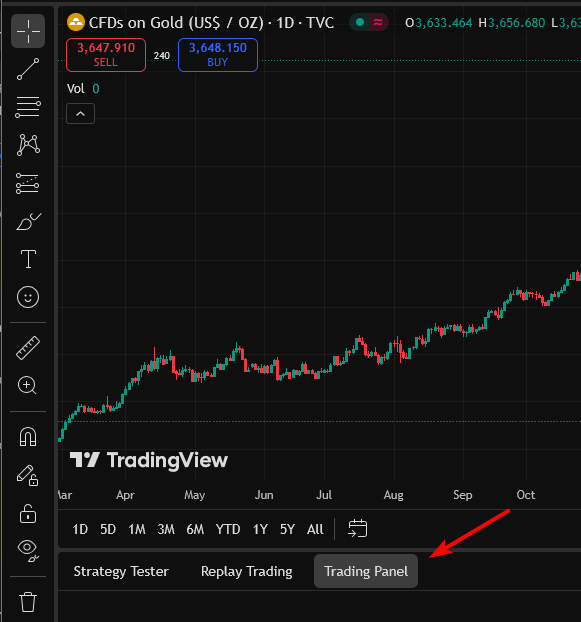
- Access the Trading Panel: Locate the Trading Panel in the lower right corner of your screen. If it’s not visible, ensure your TradingView is set to display it.

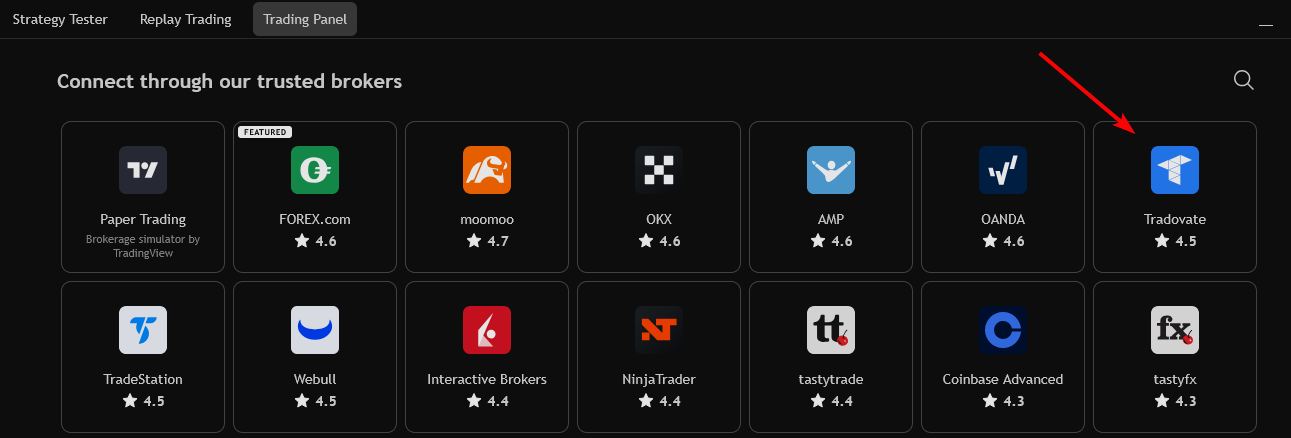
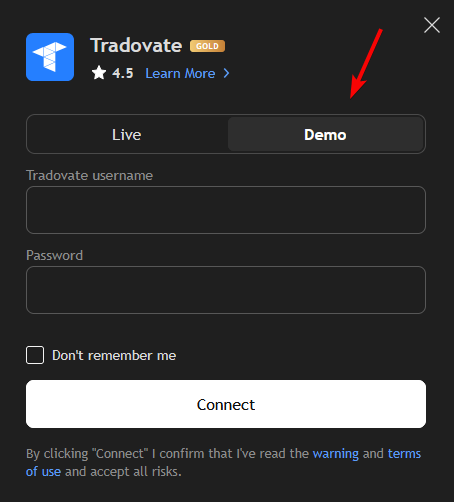
- In the Trading Panel, click on Tradovate. This will prompt a login screen.

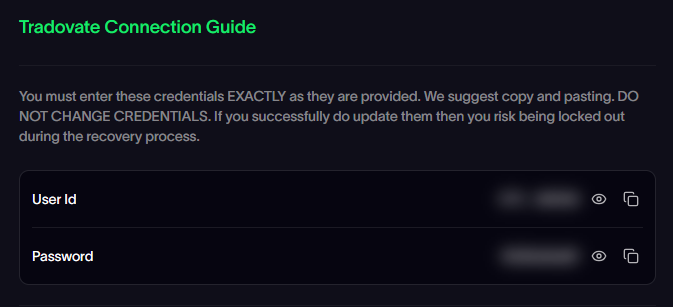
- Copy your credentials from the Trader Dashboard and paste them directly into the Tradovate login module. (Below is a screenshot of your Trader Dashboard and Tradovate Login screen on Tradingview.)


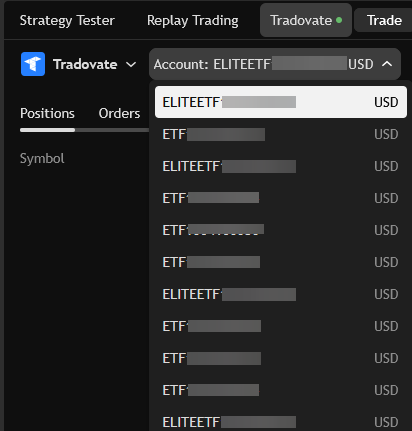
2. Select the ETF account
- All your active ETF Tradovate accounts will be shown on this list. Select the account you want to trade.

- You are now ready to begin trading!
Troubleshooting
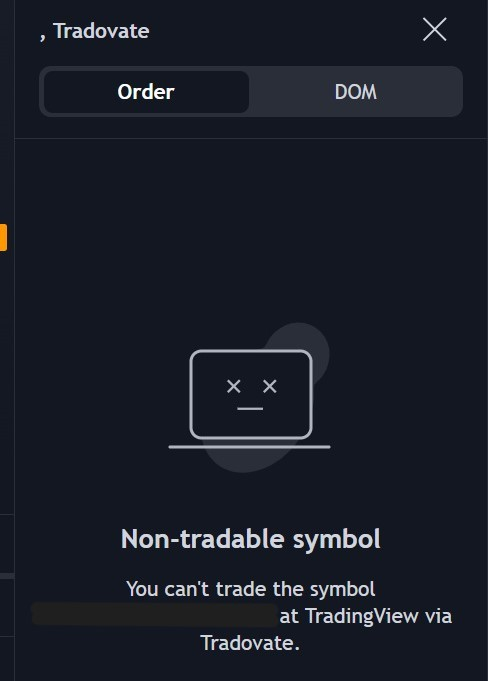
- Error Messages: If you encounter errors, it could be due to an incomplete Tradovate setup or a missing data agreement. Follow the initial setup guide linked above, or contact ETF Support if issues persist.